About Teams Partnerships
Privacy Support
Get the app →
nudge. Teams · How it works

What you do. What they see.

Running a team takes a few minutes a week in the web portal. Your members do the rest in the app they already have. Here are both sides, step by step.

Every screen below comes from a sample residence-hall team with example members. No real students appear on this page.
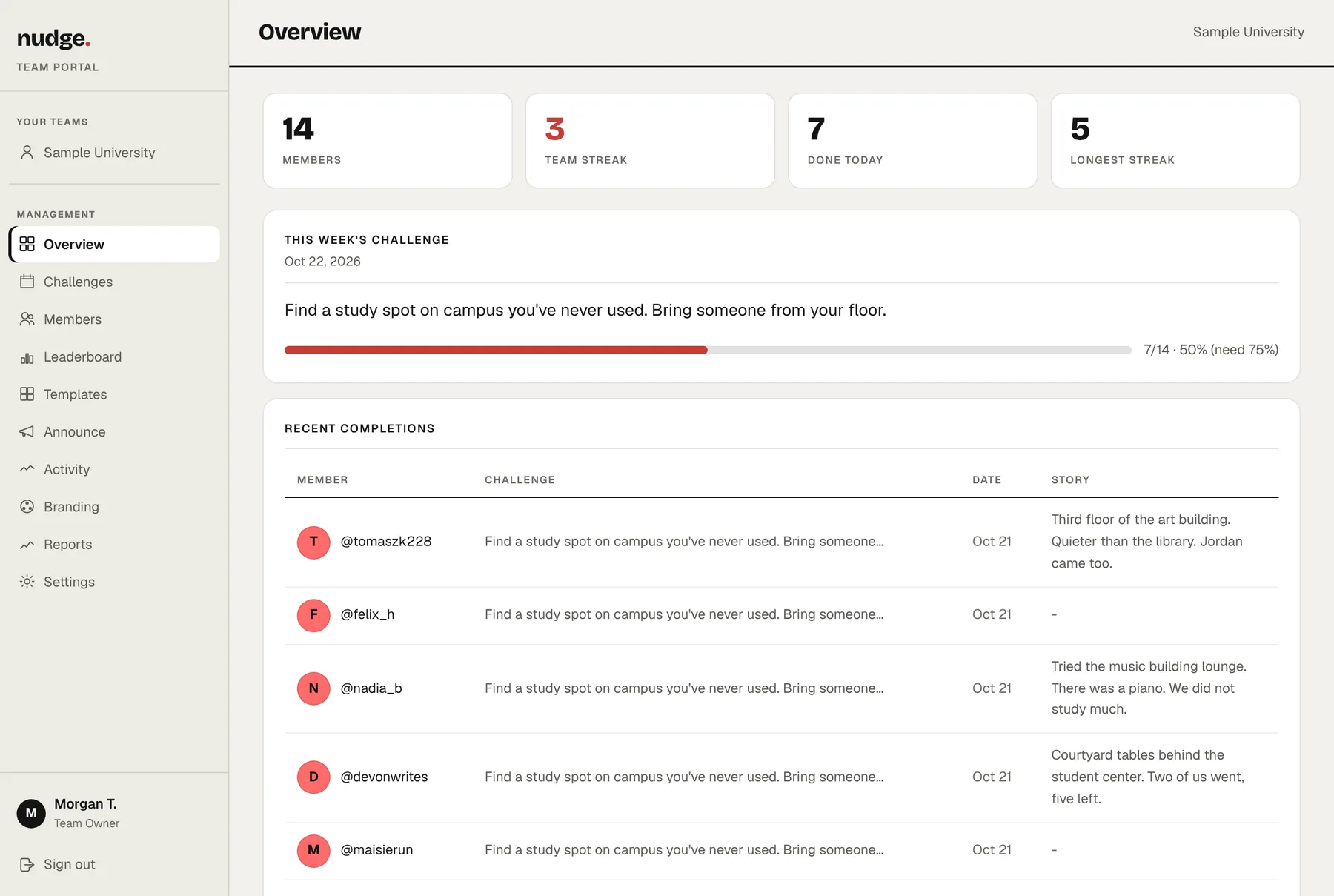
The nudge. team portal overview for Sample University: 14 members, a 3-week team streak, 7 members done today. This week's challenge reads 'Find a study spot on campus you've never used. Bring someone from your floor.' with a progress bar at 7 of 14, followed by a list of recent completions with short notes from members.
1 Set up

Create your team. Share one code.

Name your team, add your logo and color if you like, and you get an invite code. Put it in an email, on a flyer, or on the whiteboard at a floor meeting. Students join with the code, so you never upload a roster.
You · team portal
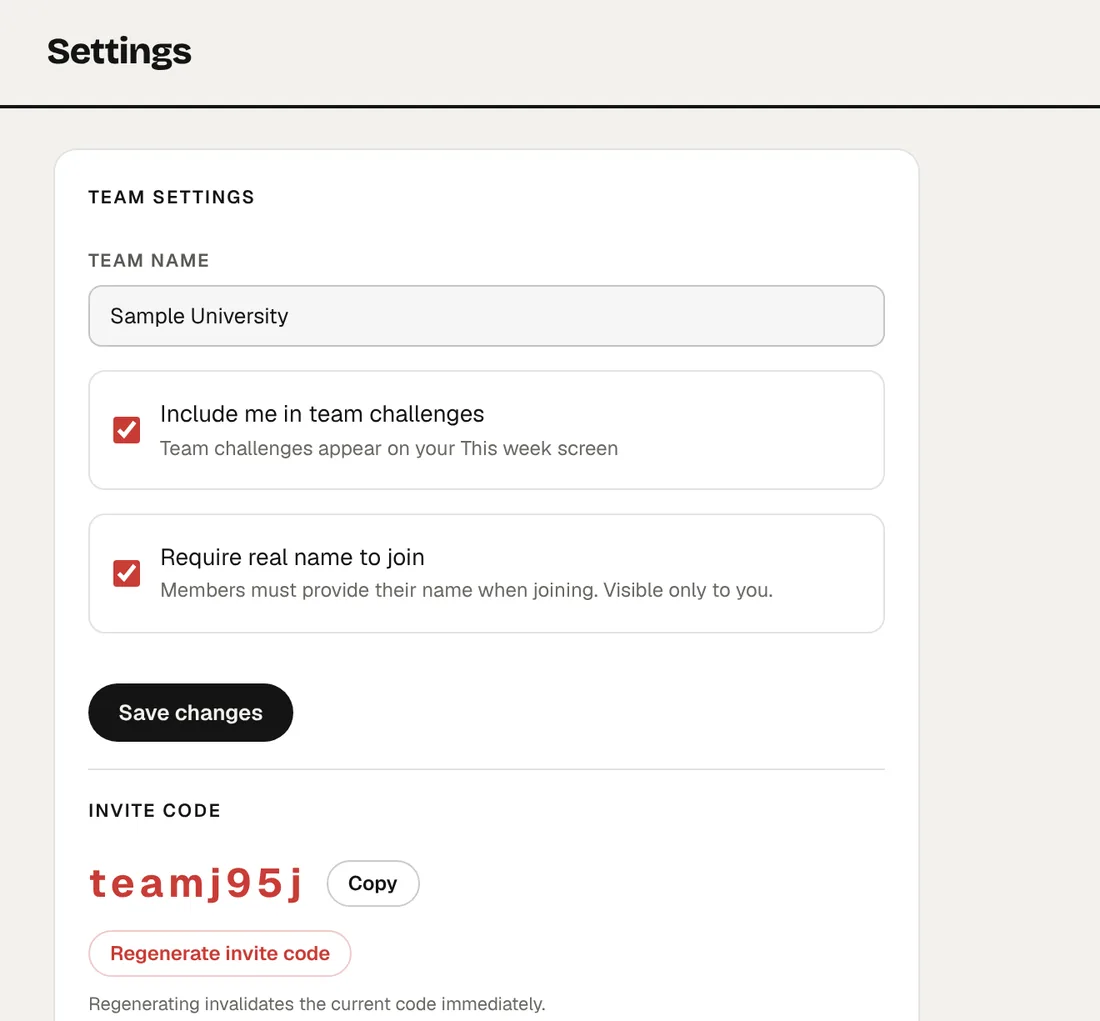
Team settings in the portal: the team name 'Sample University', options to include yourself in team challenges and to require a real name to join, and the team's invite code with a Copy button.
Your invite code lives in Settings. You can regenerate it any time, which turns off the old one right away.
Members · nudge. app
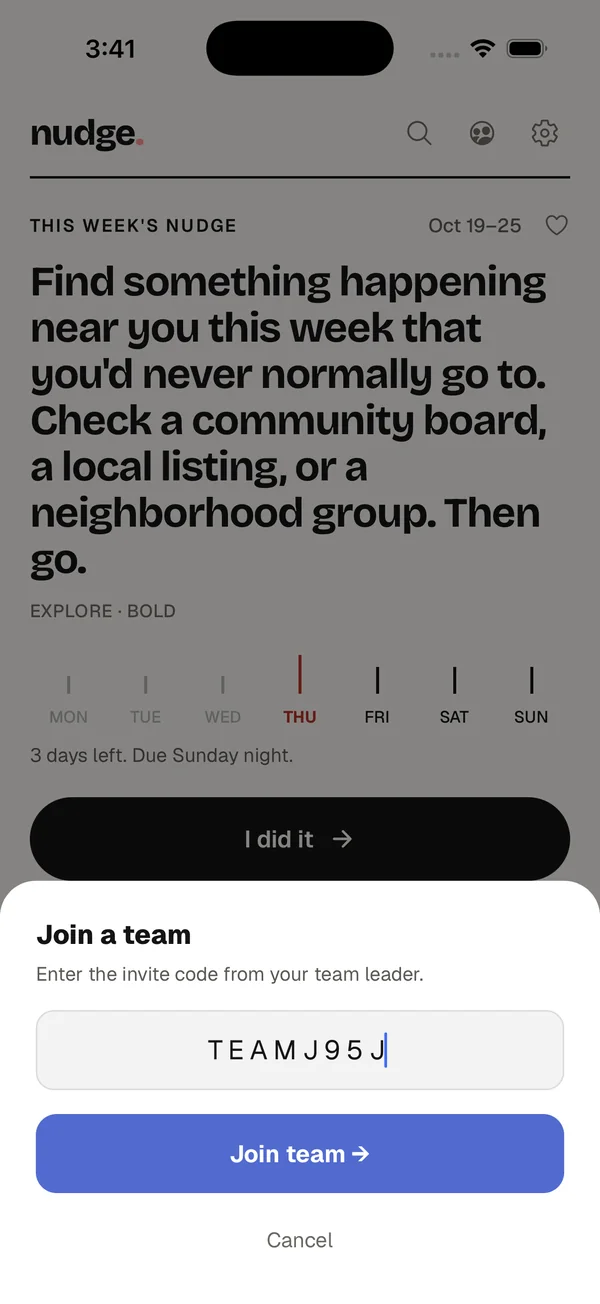
The nudge. app on an iPhone with a 'Join a team' sheet open. The invite code TEAMJ95J is typed in, above a 'Join team' button.
Members tap the team icon, enter the code, and they're in. It takes about ten seconds.
2 Schedule

Plan challenges as far ahead as you want.

Pick a day, write the challenge, and choose how long members have to do it, anywhere from one day to a full week. Add photo proof only when you want it. Members also get the regular weekly nudge, so your challenges sit alongside it instead of replacing it.
You · team portal
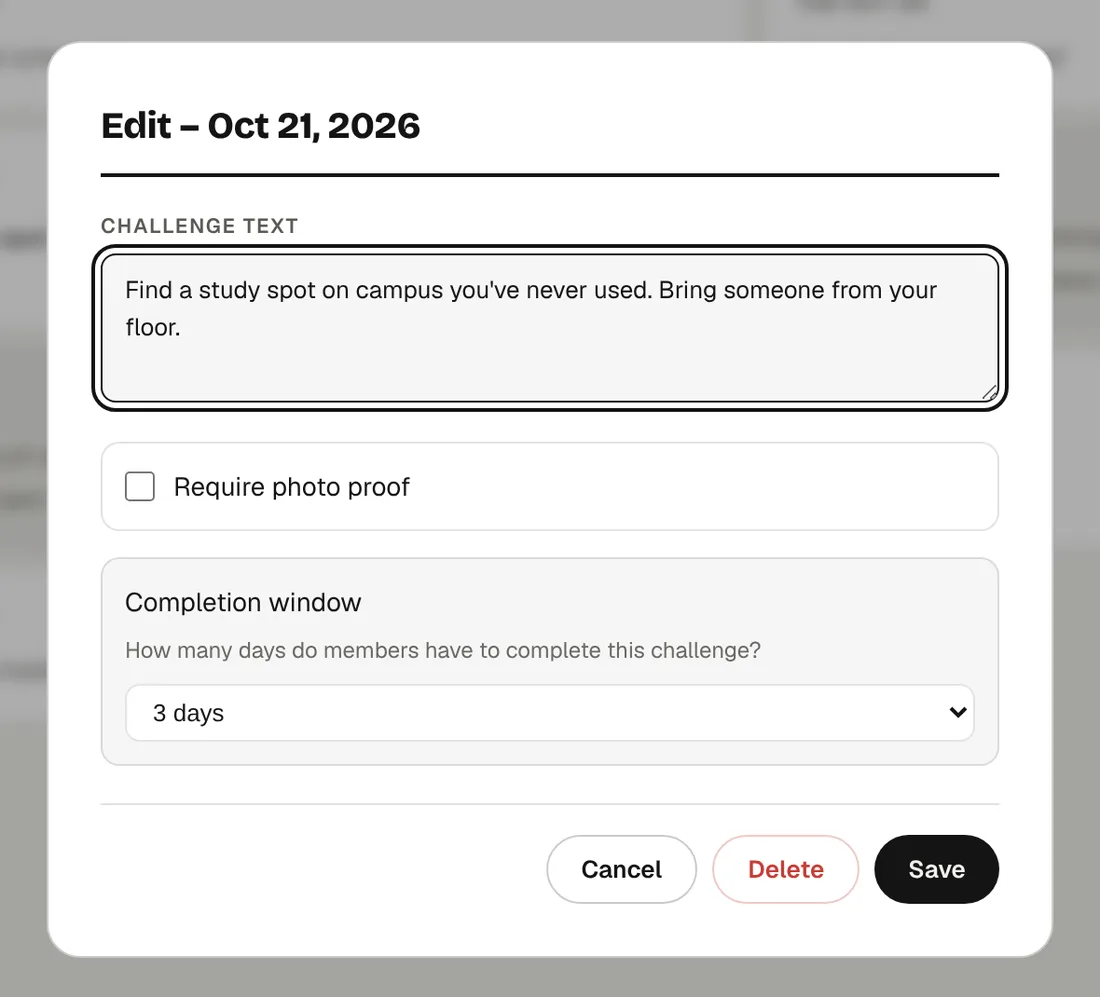
The challenge window in the portal for October 21. The challenge text reads 'Find a study spot on campus you've never used. Bring someone from your floor.' Require photo proof is unchecked, and the completion window is set to 3 days.
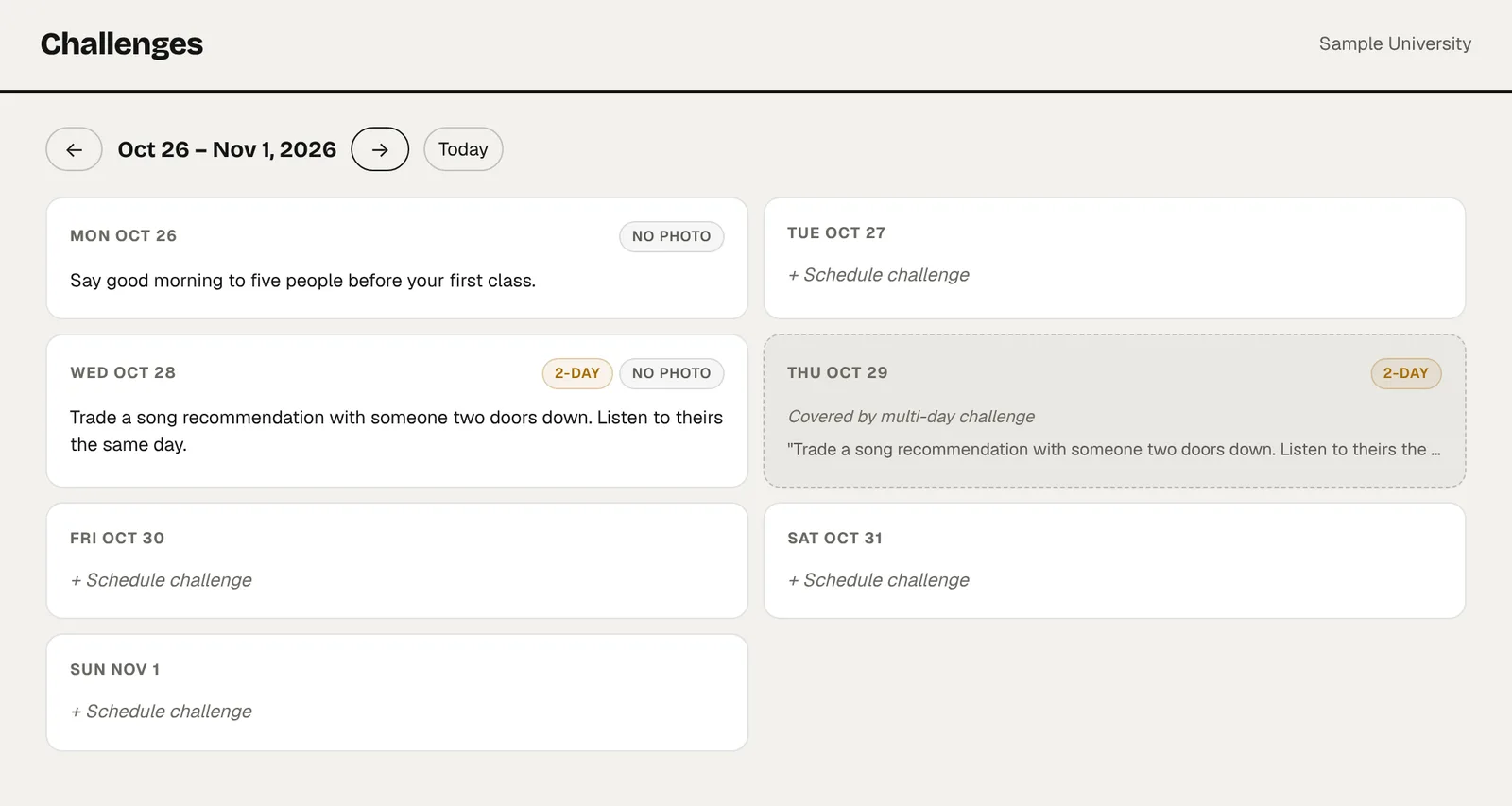
The week of October 26 in the portal calendar. Monday has a one-day challenge, 'Say good morning to five people before your first class.' Wednesday starts a 2-day challenge that also covers Thursday. Friday through Sunday are open with a 'Schedule challenge' link.
The calendar shows what's coming. Multi-day challenges cover the days they span, so nothing overlaps by accident.
1 dayMove-in, orientation, or a single event night.
2 to 4 daysSomething that needs a little planning.
7 daysA regular floor rhythm, all week long.
Members · nudge. app
The nudge. app's This week screen. Below the weekly challenge is a 'Your team' card in the team's brown color with the Sample University logo, a '3 days · ends tomorrow' label, the challenge 'Find a study spot on campus you've never used. Bring someone from your floor.' and a 'Done this one' button.
Your challenge appears on their This week screen with your logo and color, plus how much time is left. A notification goes out when it starts.
3 Do it

Members go do the thing.

The challenge happens off the phone. Afterward, members tap Done, and they can add a photo or a short note about how it went. That note goes to you, not to a public feed.
You · team portal
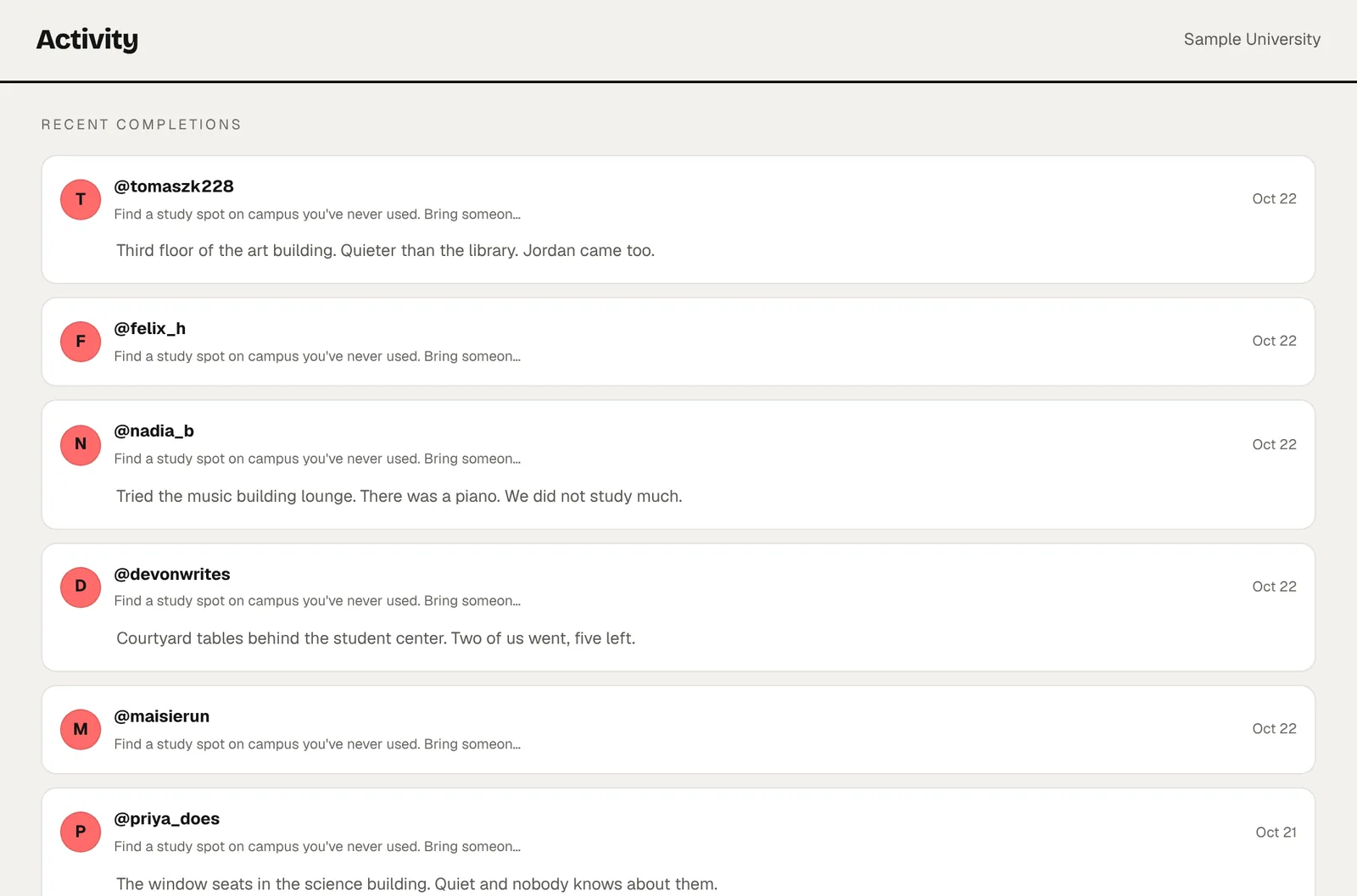
The Activity page in the portal listing recent completions. Each shows a member's username, the challenge, the date, and some include a short note, such as 'Third floor of the art building. Quieter than the library. Jordan came too.' and 'Tried the music building lounge. There was a piano. We did not study much.'
Completions arrive as they happen. The notes are often the best part, and they make good material for a floor meeting or an end-of-semester report.
Members · nudge. app
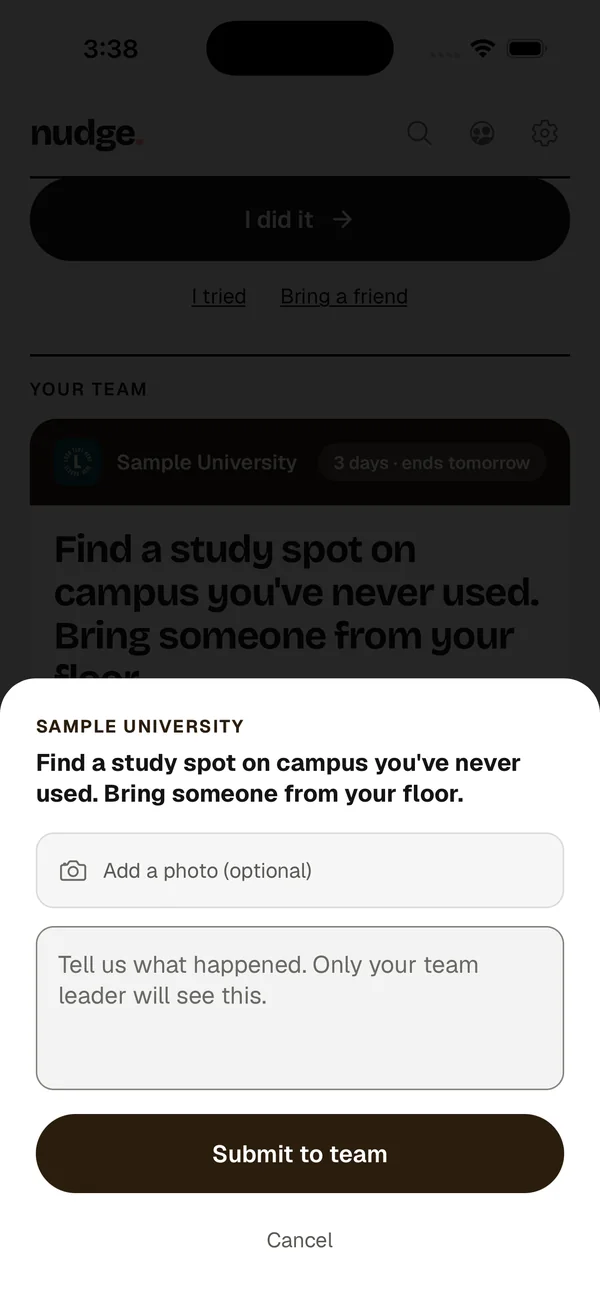
The completion sheet in the nudge. app for the Sample University challenge, with an optional 'Add a photo' button, a text box that says 'Tell us what happened. Only your team leader will see this.', and a 'Submit to team' button.
The app tells members up front: only the team leader sees what they write here.
4 Follow up

See who took part.

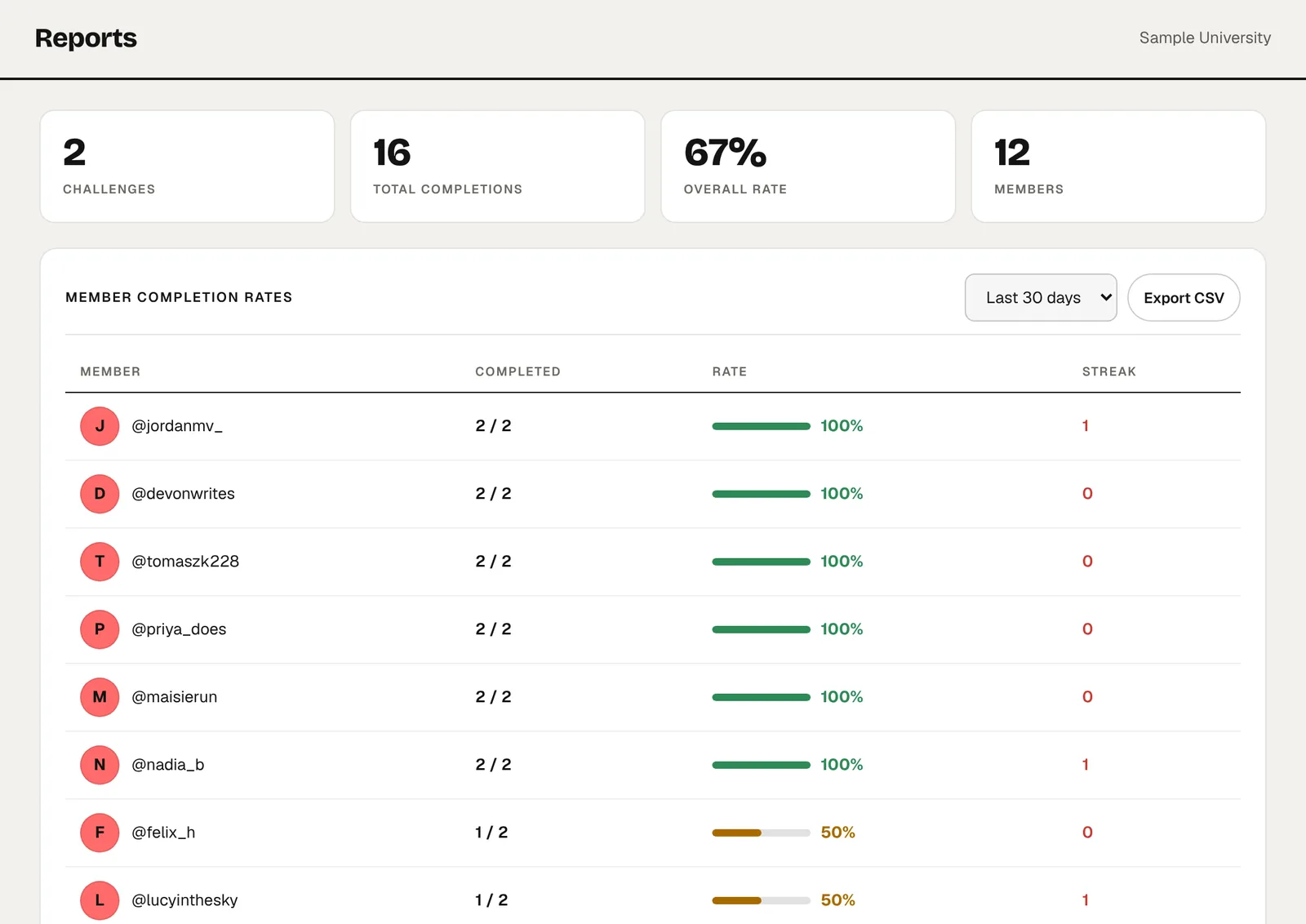
Reports show each member's completion rate over the last 7, 30, or 90 days, and you can export everything to a spreadsheet for your own records.
You · team portal
The Reports page in the portal for the last 30 days: 2 challenges, 16 total completions, a 67 percent overall rate, and 12 members, followed by a table of each member's completed challenges and completion rate, with an Export CSV button.
Export to CSV with one click, ready for an assessment report or a quick check on which halls are engaged.
Members · their privacy

What you see, and what you don't.

You see

  • Who completed each team challenge, and when
  • Notes and photos members choose to send with a team challenge
  • Each member's streak and when they were last active
  • Completion rates and a CSV export

You don't see

  • Their personal weekly challenge posts and photos
  • Their friends list

Members join with a code instead of a roster upload, so you only hold what they share with your team.

Try it with one hall.

Setup takes a few minutes, and we'll walk through it with you on a short call. Start with one floor or one cohort and see what happens.

Get in touch →